Protect and Lock PDF Files Using Microsoft Edge
Millions of users open PDFs in Microsoft Edge daily, but for securing sensitive documents, browser limitations can put your data at risk. This guide breaks down exactly what Edge can (and cannot) do for PDF security.
Can you password protect a PDF directly in Microsoft Edge? No. While Microsoft Edge is an excellent PDF viewer with markup capabilities, it does not have a native function to add passwords or encrypt PDF files. To lock a PDF, you must use a external application (like Folder Lock or Adobe Acrobat) or rely on indirect Windows workarounds, before opening the protected file in Edge.

"Viewing a document is not the same as securing it. Relying on a browser for file-level encryption is the most frequent mistake in personal document security."
PDF Security Options in Microsoft Edge

Since the retirement of Internet Explorer, Microsoft Edge has become the default PDF handler for Windows 10 and 11. It excels at rendering, highlighting, and signing documents. That said, many users search for ways to lock pdf in microsoft edge only to hit a wall.
The reality is that Edge operates as a reader, not a fully-fledged document editor or encryption engine. If an agency asks you how they migrate content securely, or if you need to share a tax return, you cannot just click "Save with Password" inside the Edge browser interface.
To achieve document password security, the encryption must happen at the file system level or via dedicated software before the file is ever opened in Edge. Below, we break down the three most effective ways to lock a PDF so it is secure regardless of which browser opens it.
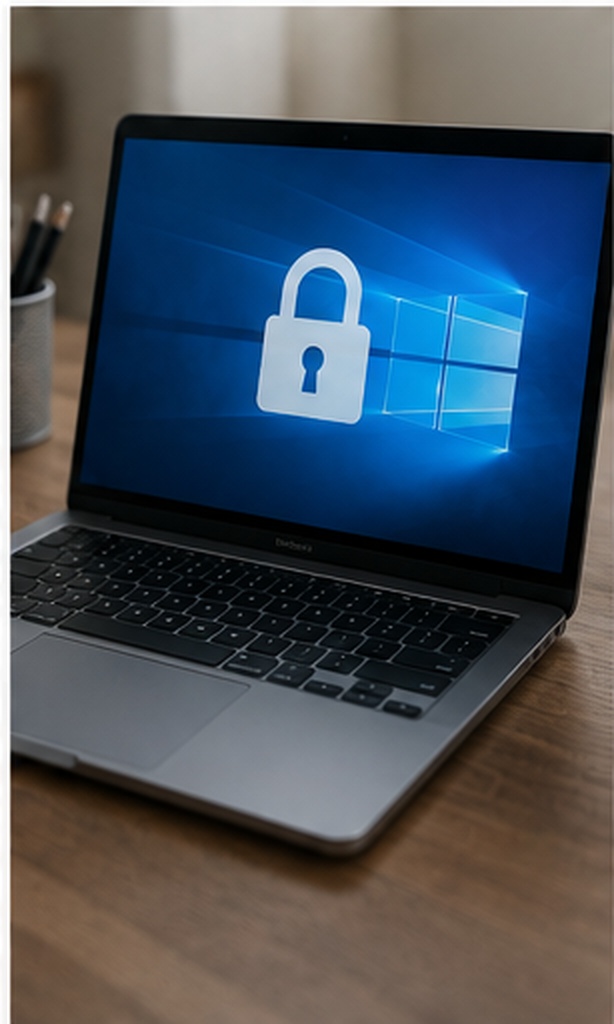
Ways to Lock a PDF Using Free Windows Tools (And Software)
Method 1: Windows Native Workaround (No Software)
If you should understand how to password protect a pdf in windows 10 without downloading anything, you can use the native Encrypted File System (EFS) or BitLocker. That said, this protects the folder, not the individual PDF itself when shared via email.
- How it works: Right-click the folder containing your PDF > Properties > Advanced > check "Encrypt contents to secure data".
- Security level: High (locally), Zero (if emailed).
- Limitations: If you email this PDF to someone, the encryption is stripped. It only protects the file from other users on the *same* physical computer.

Method 2: Microsoft Office "Save As PDF" Exploit
If you generated the document yourself, you can use Microsoft Word to add the password before turning it into a PDF.
- How it works: Open your Word doc. Go to File > Save As. Choose PDF. Click 'choices' and check 'Encrypt the document with a password'.
- Security level: Moderate (standard Office encryption).
- Limitations: You must own Microsoft Office, and this only works for files you are actively creating. It does not help if you downloaded an current PDF.

Method 3:Dedicated Document Security Software
To universally password protect a pdf in edge environments, external software is required. Tools designed for this inject AES-256 encryption directly into the file's metadata.
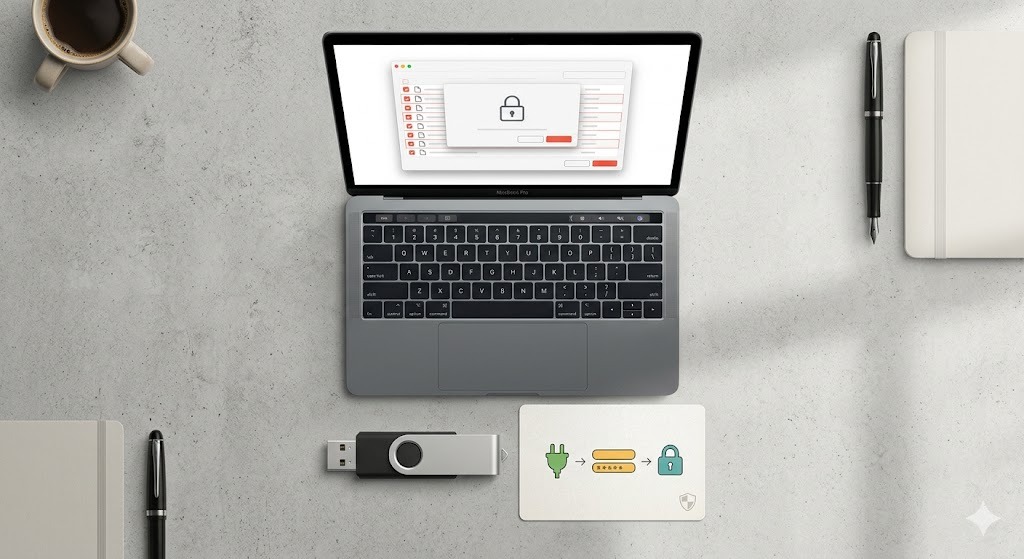
- How it works: You drag the PDF into the software vault, assign a master password, and the file is locked. It cannot be opened in Edge, Chrome, or Adobe without that key. Premium offline security tools go beyond local encryption by offering self-contained portable vaults. That means you can wrap your PDF in an executable secure package, transfer it to a USB drive, and open it on any computer—even those without the security software installed—provided you have the correct credentials.
- Security level: Military-grade (AES-256).
- Best for: Users who need to secure multiple files, batch protect documents, or ensure files remain locked even when uploaded to the cloud.

The Tool We Recommend for Most Users
After testing native Windows functions, Adobe Acrobat Pro, and various open-source tools, we recommend Folder Lock for universal PDF and document protection.
While Adobe requires an expensive monthly subscription just to password-protect a single file, Folder Lock offers system-level encryption for all file types—not just PDFs. It bridges the gap that Microsoft Edge leaves open, ensuring your files are encrypted before they ever reach the browser. Furthermore, your secured vaults sync seamlessly across Windows, macOS, iOS, and Android environments via direct integration with Google Drive, Dropbox, and OneDrive.

Locker Name: Financial_PDFs
Status: Secured (AES-256)
Which PDF Security Method is Right for You?
Not sure if you need native Windows tools or dedicated software? Take this 2-question assessment.
1. Are you trying to protect a PDF from users on your *own* computer, or people you are emailing it to?
2. Do you only need to protect PDFs, or also photos, Word docs, and folders?
2. Do you have a paid subscription to Adobe Acrobat Pro?
Result: Use Windows Built-in EFS
Since you only need local protection for a single file, right-click the file folder, go to Properties > Advanced, and encrypt it. No extra software needed!
Result: Use Adobe Acrobat Pro
Since you already pay for Acrobat, use its native password function. Open the PDF in Acrobat, go to Protect > Encrypt > Encrypt with Password.
Result: Use Folder Lock
since you need to protect files across the web or protect multiple file types without a massive monthly Adobe subscription, Folder Lock is your most cost-effective and secure choice.
Try Folder Lock FreeReasons Document Password Protection Is Not the Same as Encryption
When searching for ways to lock a document so it cannot be edited or copied, it's vital to understand the technology securing the file.
Permissions Passwords (Weak)
This tells the PDF viewer (like Edge) not to allow printing or editing. That said, malicious users can bypass this by simply using a various viewer that ignores the permission flag.
Open Passwords (Moderate)
The PDF requires a password just to be viewed. This uses standard PDF encryption. It's safe for casual sharing, but weak passwords can be easily brute-forced by automated tools.
AES-256 Vault Encryption (Strongest)
Used by Folder Lock. The PDF is scrambled at the binary level. Even if someone steals the file, it reads as corrupted data without the master decryption key. This is how agencies migrate content to the cloud securely. Furthermore, the software utilizes on-the-fly encryption where files are decrypted entirely in your system's RAM. This prevents temporary files from ever touching your hard drive, completely eliminating digital footprints that forensic tools might exploit.

Secure Asymmetric Sharing
Traditional password security forces you to send the decryption key via email or text, creating a massive security vulnerability. Dedicated tools employ advanced asymmetric RSA cryptography, allowing you to grant access to authorized colleagues without ever transmitting your master password. To view the shared PDF securely, The recipient simply relies on their own credentials.
Edge vs Adobe Reader for PDF Security
A transparent look at how native browsers stack up against dedicated readers and encryption software when attempting to password protect file assets.
| function | Microsoft Edge | Adobe Reader (Free) | Folder Lock |
|---|---|---|---|
| View PDFs | (Secures them instead) | ||
| Require Password to Open | (Requires Paid Pro) | ||
| AES-256 Encryption | |||
| Batch Protect Multiple Files | |||
| Protect Folders & USBs |
Ways to Lock a PDF Using Folder Lock
Since Microsoft Edge cannot do this natively, here is the fastest way to protect your documents using dedicated software.
Create a Secure Locker
Open Folder Lock and create a new "Locker". Think of this as a digital safe on your hard drive. Set a strong master password.

Move Your PDF into the Locker
Drag and drop your PDF (or the entire folder of PDFs) directly into the open Locker interface.
Close and Lock
Click "Close Locker". The files inside immediately vanish from Windows Explorer and are fully encrypted. If anyone tries to open them in Microsoft Edge, the system will deny access entirely.
Permanently Shred the Original (Crucial)
Once your PDF is safely locked inside the encrypted vault, utilize the software's native digital shredder. Simply deleting the original file leaves recoverable traces on your hard drive. Instead of a standard deletion, employ advanced wiping protocols—like the 35-pass Gutmann approach or Department of Defense (DoD) standards—to permanently overwrite the empty space, ensuring the original PDF is mathematically impossible to reconstruct.

Permissions Password vs Open Password — Explained
When dealing with PDF security edge compliance, you must choose between two password types.
An open password encrypts the entire file. A permissions password merely asks the software to hide the "Print" or "Edit" buttons.

If you apply a permissions password to prevent document copying, Edge might respect it. But if the recipient uploads that PDF to an online "PDF Unlocker" website, those sites strip the permissions flag instantly. For true security, always use an Open Password or system-level AES encryption.
The Safe Mode Vulnerability
Another severe vulnerability of standard browser or permission-based locks is operating system bypass. A determined intruder can simply reboot your computer in Windows Safe Mode to skirt around basic software restrictions and access your local files. Dedicated offline tools counteract this by utilizing kernel-level filtering drivers. This deep integration ensures your encrypted PDFs remain invisible and completely locked down, regardless of how the operating system is booted.
Best Free PDF Password Tools vs Full Protection
Compare native workarounds with the full security suite to see what fits your privacy needs.
Native OS Options
- ✔️ Windows EFS (Local Folder Encryption)
- ✔️ Microsoft Word "Save As PDF" workaround
- ❌ Cannot batch protect files
- ❌ Encryption breaks when emailed
- ❌ No USB drive protection
Cost: $0 (Included with Windows)
Folder Lock
- ✔️ 256-bit AES on-the-fly encryption
- ✔️ Cross-platform sync (macOS, iOS, Android, Windows)
- ✔️ Invisible kernel-level cloaking (active even in Safe Mode)
- ✔️ Secure files for email and cloud sharing via RSA cryptography
- ✔️ Create portable self-decrypting USB drives
- ✔️ Digital file shredder and hack-attempt monitoring
What to Do If You Forget a Document Password
If you've locked a PDF and find yourself searching for how to access password-secured pdf files, your recovery choices depend heavily on how it was locked.
Forgot your Folder Lock master password?
By design, true AES-256 encryption does not have a backdoor. If you lose the master password to your Folder Lock vault, NewSoftwares cannot retrieve it for you. This is what makes the software genuinely secure. Always keep a physical backup of your master password in a secure location.
What happens if someone tries to guess my password?
If a malicious user tries to brute-force your protected document vault, advanced tools offer active defense mechanisms. functions like hack attempt monitoring act as a digital tripwire. While silently capturing a detailed log of the intrusion attempt, After a predefined number of incorrect password guesses, the software can automatically log off your Windows session or shut down the computer entirely.
Can Chrome open password protected PDF without password?
No. Neither Chrome nor Edge can bypass a legitimate document open password. If you own the document and forgot the password, you must recreate the PDF from the original source file (like the Word document) or locate where the password was initially stored (like a password manager).
Can I remove password protection from PDF?
If you know the password, yes. Open the file in a premium editor (like Acrobat), enter the password, go to Security controls, and choose "Remove Security." If you do not know the password, you cannot remove it legally or safely via browser controls.
Common Questions and Answers
Our Verdict
While Microsoft Edge is a highly capable PDF reader, it is not a document security solution. Relying on browser quirks or straightforward permissions passwords leaves your sensitive data vulnerable. For true peace of mind—whether you are storing tax documents locally or emailing confidential files—system-level encryption is required.
Folder Lock offers AES-256 encryption that safeguards your PDFs long before Edge even attempts to open them.
